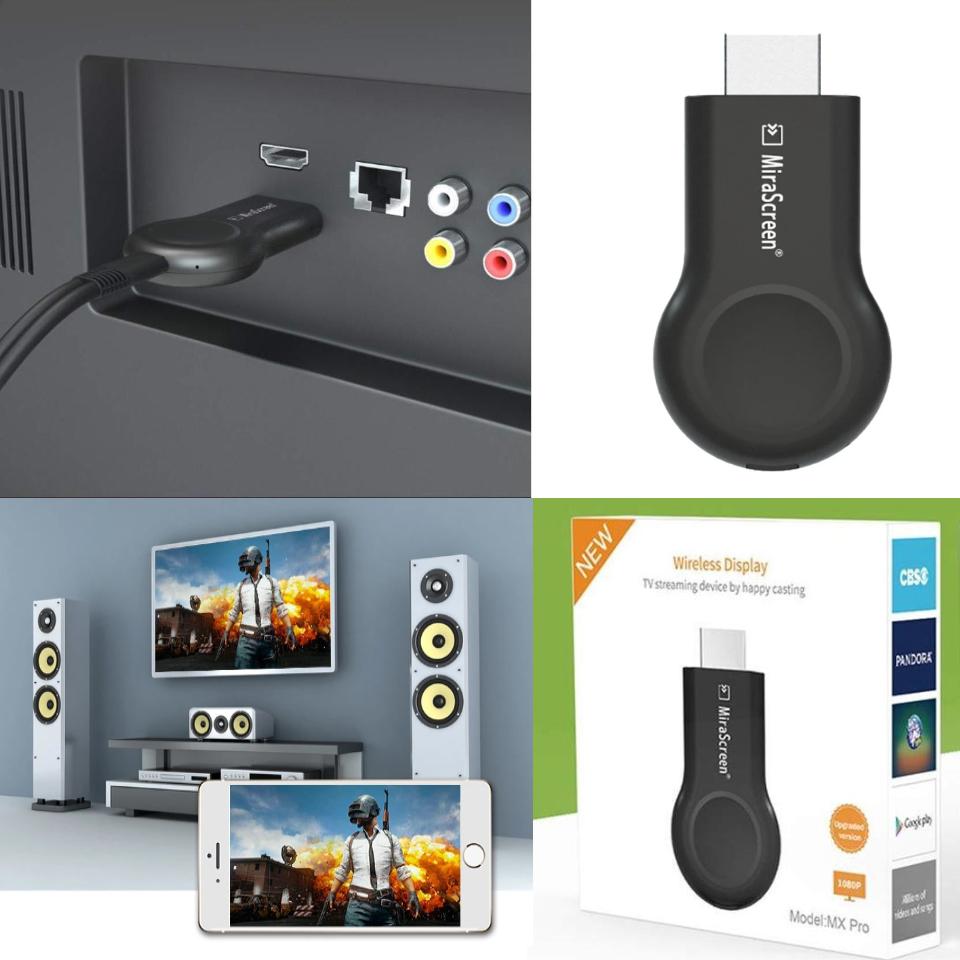
For Android devices:
1.Wait for MiraScreen main screen after power on.
2.Turn on your Android menu, and then enable Miracast.
3.Select MiraScreen as target and wait for connection.
4.Your Android screen will be shown on your TV, reconnect if necessary.
For iOS devices:
1.Wait for MiraScreen main screen after power on.
2.Connect your iPhone with MiraScreen via Wi-Fi. Launch browser on your iPhone to setup Internet for MiraScreen (connect MiraScreen to your Home WiFi Router).
3.Connect you iPhone to Home WiFi Router. Swipe up on your iPhone and tap on AirPlay Mirroring, then select MiraScreen as target.
4.Your iPhone/iPad screen will be shown on your TV through MiraScreen.
SKU: 7644
Categories: Computer Accessories សំភារះកំព្យូទ័រ